Property Logins
Setting up a House specific log in for Staff to access from.
This portal allows specific team members to only access through specific work computers within the property as a pose to remote log in.
Firstly you will need to head to the property you wish you set up. Ensure the role for the user looking to set it up has the permission View property credentials enabled so they can access the data.

Once you have generated the new link by clicking the Here button Re open the house login link. Click copy to copy the URL generated (This is only valid of 30 minutes) You can then email this to the laptop / PC that you are setting up for the property. Simply open up either a Google Chrome or a Microsoft Edge Browser & paste the URL into the browser and hit enter
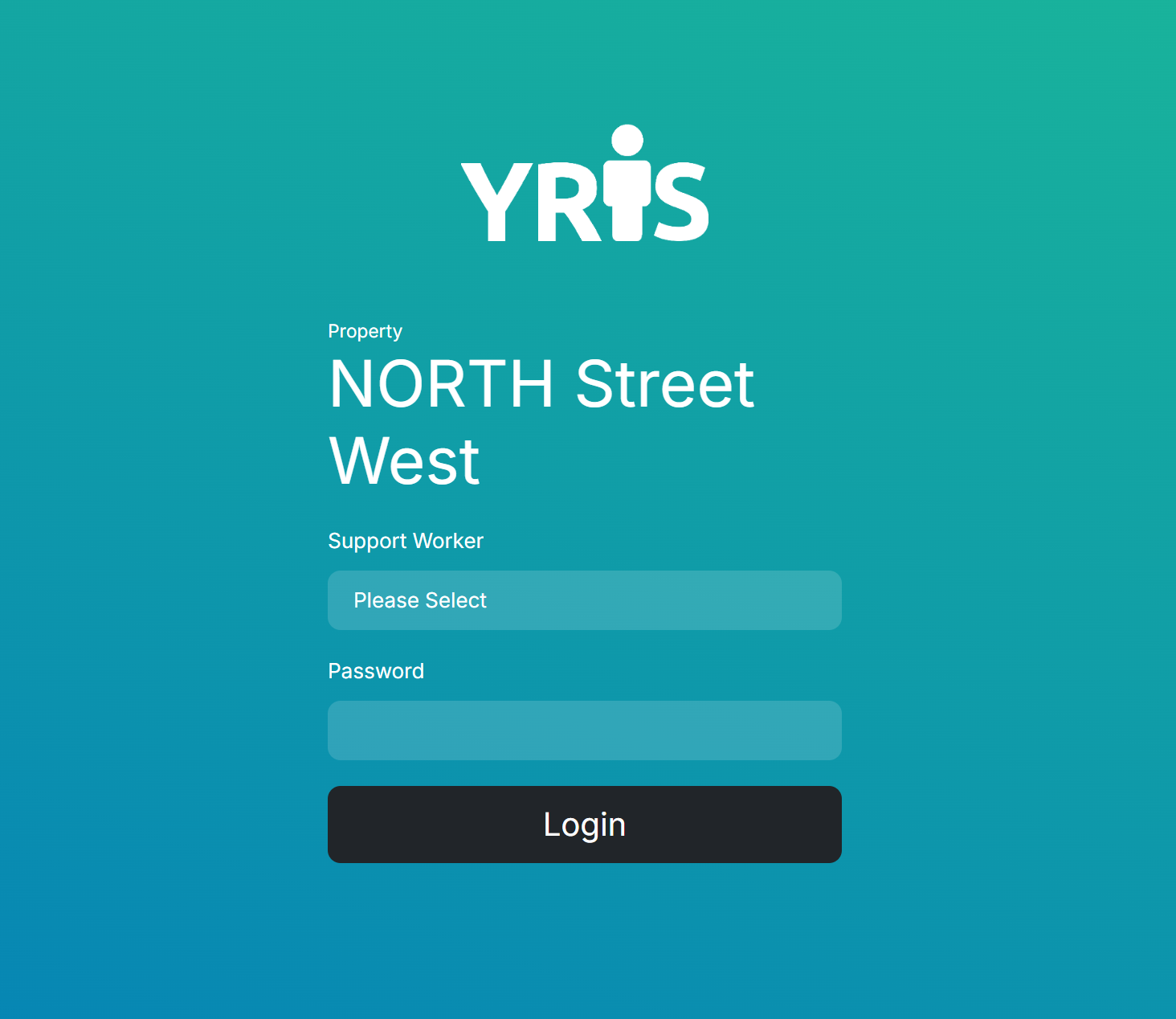
Your house login portal will open.
From here to ensure this page opens up every time your staff open up and use the PC we want to save the settings in the browser. Microsoft Edge & Google Chrome have similar settings
Click the Burger menu in the top right and click onto Settings.

Locate a heading called On Start Up
You then want to choose the option Open a specific page or set of pages
Simply click add a new page & copy the URL in from the log in page
It will consist of https://(YOURINSTANCEURL)/authorize/user
For example
https://demo.yris.cloud/authorize/user
From there this will mean your browser will remember the access cookie & open up this every time you restart your Browser ensuring the team can log in.
If for example you acquire a new PC or you need to re activate the current one, simply follow this process again.