How the Ofsted Safeguarding Tracker Works
Audience: Managers, Safeguarding Leads & Directors
The Safeguarding Tracker is used to record, track and evidence safeguarding concerns over a period of time.
It works alongside:
- Incident Reports
- Ofsted Notifications
How to trigger the Safeguarding Tracker?
On your incident reports the field
Does this incident raise a Safeguarding alert? Marking this as Yes
This will not instantly trigger the safeguarding / notification log as it is management preference if the notification is required.
Once a manager with permissions to trigger notifications reviews the opens the incident they will see the Trigger Notification button.
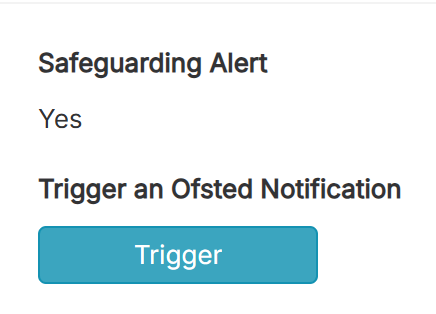
Once clicked, (allow a little load time)
It will auto navigate you to the created ofsted log.
You can also access these via the ofsted icon in the top Header Menu
This automatically links the incident report to the log and current status.
Simply navigate to the edit in the top right to fill out the standard Ofsted log information as well as asign any users to recieve notifications for the log.
As you have triggered the notifcation as a manager the first thing you need to do in the log is navigate to the edit form in the top right, this allows you to fill out core information but most importantly assign users to the log. Automatically any LEVEL 5 role will be assigned to the log and recieve a notification of its status / progress. - You can add in any other releveant member of your team who has Ofsted permissions from here.
They will recieve email updates of the progress.
You can come back and edit this section over time.
Navigating back to the overivew of the log once your changes are saved. You will see the updated details and also the safeguarding Tracker button at the bottom.
Simply clicking Begin Safeguarding Tracker will inititate the form.
Your form will begin & you can edit all the required fields throughout.
You can save changes and come back and edit as you need until all elements of the safeguarding concern are completed.
As with the original notifications once completed you can sign off the log as completed with the usual complete button.
There will be the standard PDF visable also and all logs will be evidenced in the ofsted notification tab